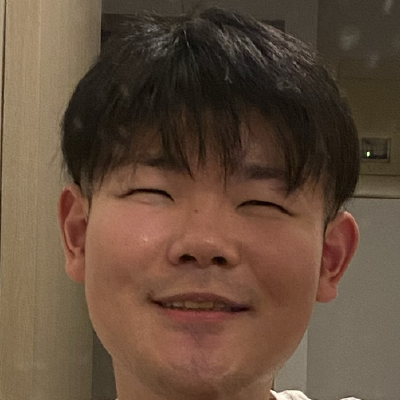
Upscale an image to a sharper, higher-resolution version without losing what makes it accurate. Upload a photo and the AI enlarges it and cleans up detail, keeping text, faces, and product labels faithful to the original.
How to upscale an image
- Upload a PNG, JPEG, or WebP image (up to 10MB).
- Press Upscale.
- Wait a few seconds while the AI enlarges and sharpens the image.
- Download the result, or find it later in your run history.
The upscaled image is stored in your private workspace, so you can re-download it any time. Each run uses credits from your account.
When to use a faithful upscaler
This tool is a crisp, faithful upscaler rather than a generative redraw. That distinction matters:
| Situation | Why a faithful upscaler helps |
|---|---|
| Product photos | Labels, logos, and text stay readable and accurate |
| Old or low-resolution photos | Detail is enlarged and sharpened without inventing new faces or features |
| Screenshots and diagrams | Fine lines and small text stay legible after enlargement |
| Print or large-display use | A higher-resolution file holds up better at bigger sizes |
Tips
- Start with the best source you have. The clearer the input, the better the upscaled result.
- Use it for accuracy, not reimagining. If you want the AI to change the picture, use an image editor tool instead — this tool intentionally keeps the content the same.
- Re-download from history. Results stay in your workspace, so you don't need to keep the file locally right away.
Limitations
The upscaler enlarges and sharpens; it does not restore information that was never captured. Extremely small or heavily compressed sources have limited detail to recover.